User Guide
This guide is for people using JarvisClaw for the first time. It starts at sign-up and ends with the platform wired into your own program.
The first six chapters are enough to get your first call working, about ten minutes of reading. The rest is reference. Come back to it when you need it.
- Console:
https://api.jarvisclaw.ai - Docs:
https://docs.jarvisclaw.ai
Screenshots come from the real console. Balance and usage figures in them are masked; your own account shows your own data.
1. What the platform does for you
In one sentence: one key and one endpoint, for every AI capability and API on the platform, billed by what you actually use.
Five things worth knowing
1. One key covers everything
Chat, images, audio, video, embeddings, reranking, search, and every interface in the API Marketplace all sit behind the same key, which starts with sk-. No separate account and no separate auth scheme per capability.
2. Your code barely changes
We serve native OpenAI-protocol and Anthropic-protocol endpoints, both in the original request and response formats. Whatever your program already does, change the endpoint and it works. The Gemini protocol is supported too.
3. Pay per call
No monthly fee, no subscription tiers, no minimum. If your balance is positive you can call; top up when it runs out. Stop whenever you like; nothing keeps charging.
4. On-chain top-ups
Alongside regular online payment, you can fund the account with USDC on Base and Solana. The balance updates automatically once the deposit settles; no manual review.
5. Built for AI agents
Besides the endpoints humans write code against, the platform exposes two channels an agent can use to discover and invoke capabilities on its own: AIP (Agent Intent Protocol) and MCP (Model Context Protocol). An agent can look up what exists, estimate cost, and execute under a spending cap by itself. Chapters 8 and 9 cover both.
Three things you will use most
| What it is | Where | |
|---|---|---|
| Model calls | Mainstream chat, image, audio and video models | Call the API directly |
| API Marketplace | Ready-made APIs: prediction markets, web search, on-chain data, media generation, and more | API Marketplace page |
| Account and billing | Wallet, top-ups, call records, cost summaries | Wallet and related pages |
2. Step one: sign up and sign in
- Open
https://api.jarvisclaw.ai. - Click Console in the top right.
- No account yet? Choose Sign up and register with an email and password. Otherwise Sign in.
- You land on the console home page.
The interface is in English by default; the EN control in the top right switches language. Next to it is the light/dark theme toggle.

Figure 1. The top navigation bar. Every major area starts here.
Those entries map to the main parts of the platform: API Marketplace, Model Gateway, Agent Intent Protocol, Machine-to-Machine, and Docs. Your USDC balance is shown live on the right.
3. Step two: reading the wallet page
After signing in, open the Wallet page. This is the page you will come back to most.

Figure 2. The three cards at the top of the wallet page.
| Card | What it means |
|---|---|
| WALLET BALANCE | Currently available balance. A warning icon appears here when it runs low. |
| USAGE | Actual spend over the last 30 days. |
| API REQUESTS | Number of calls over the last 30 days. |
The top navigation bar also shows your balance at all times, so you can glance at it from any page.
Suggestion: check the balance before your first call. Calls are rejected at zero balance, and that is the single most common answer to "why isn't my request working".
4. Step three: adding funds
Two ways to top up, both on the Wallet page. Pick one.
Option A: online payment
Still on the Wallet page, scroll down to the top-up section.
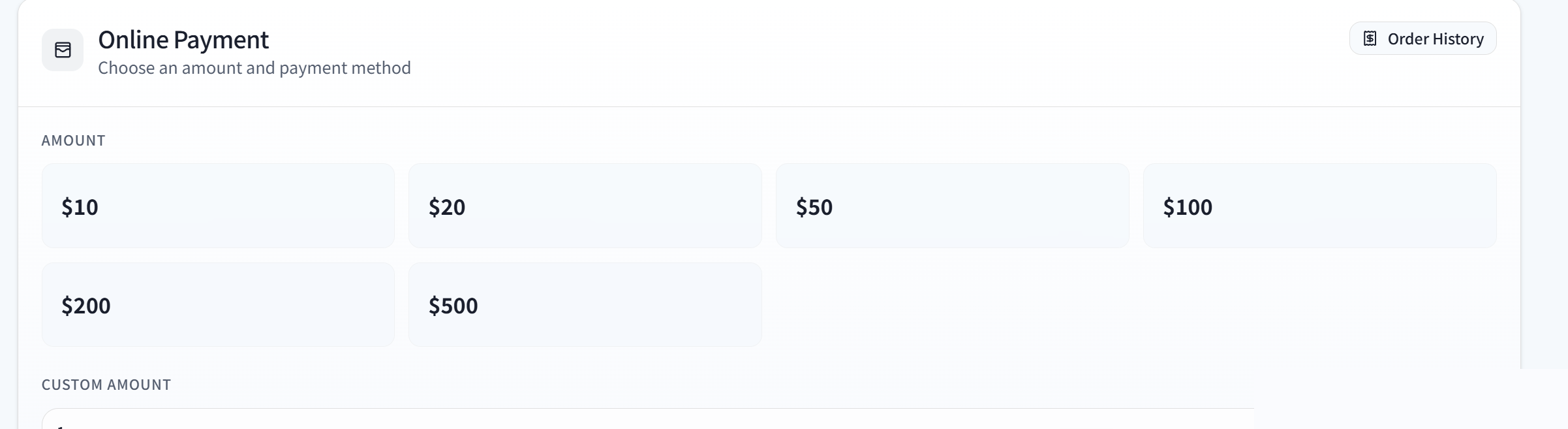
Figure 3. The Online Payment section.
- Pick a preset under AMOUNT, or type your own figure into CUSTOM AMOUNT.
- Choose a payment method. The page shows which channels are currently open.
- Complete the payment as prompted.
The balance updates automatically once payment succeeds. If it does not change immediately, refresh the page.
Option B: USDC stablecoin deposit
If you prefer on-chain assets, send USDC directly. Click Crypto Deposit in the top-up section.
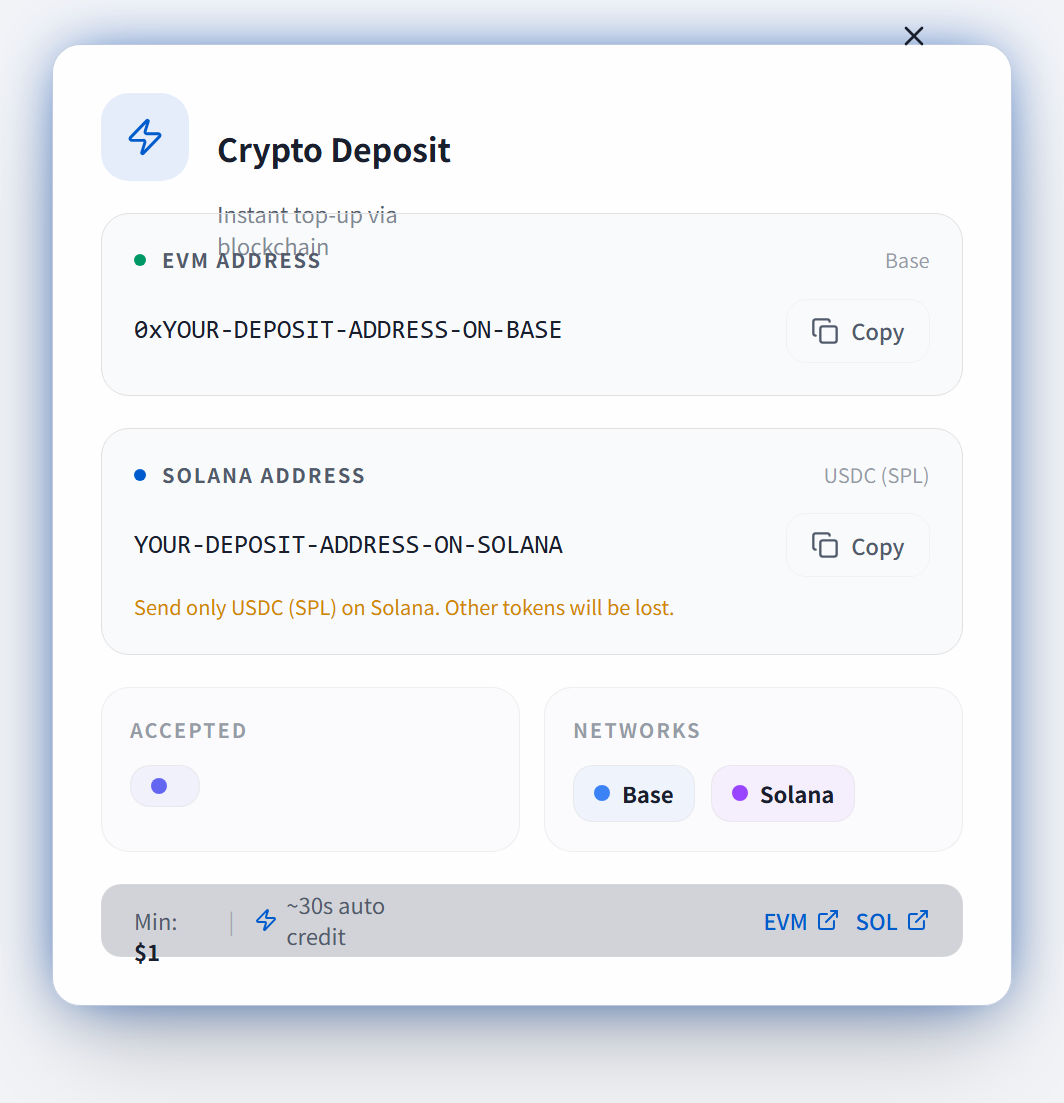
Figure 4. The Crypto Deposit dialog, with one dedicated address per chain. The addresses in the screenshot are masked; use the real ones shown on your own page.
The dialog gives you two dedicated deposit addresses, both unique to your account and reusable indefinitely:
| Chain | Accepts | Note |
|---|---|---|
| Base | USDC (EVM standard) | Send only USDC on Base |
| Solana | USDC (SPL standard) | Send only USDC on Solana |
Steps:
- Pick the chain you want to use, Base or Solana.
- Copy the matching address, or scan the QR code.
- Send USDC from your wallet or exchange to that address.
- The dialog shows live status: Confirming (awaiting on-chain confirmation) → Settling (crediting) → done. The balance updates automatically once it lands.
Three things you must get right:
- Send USDC only, and only on the chain you selected. Other tokens, or the right token on the wrong chain, cannot be recovered.
- Each deposit has a minimum amount. The Min figure in the dialog states the current value. Anything below it is not credited.
- The addresses are yours permanently. Send as many times as you like; there is no need to fetch a new one.
Deposit history is under Order History, or in the history list inside the dialog. Every transfer is recorded.
5. Step four: creating your API key
This is the only step needed to connect the platform to your own program. Open the API Keys page from the menu, or go straight to https://api.jarvisclaw.ai/en/keys.
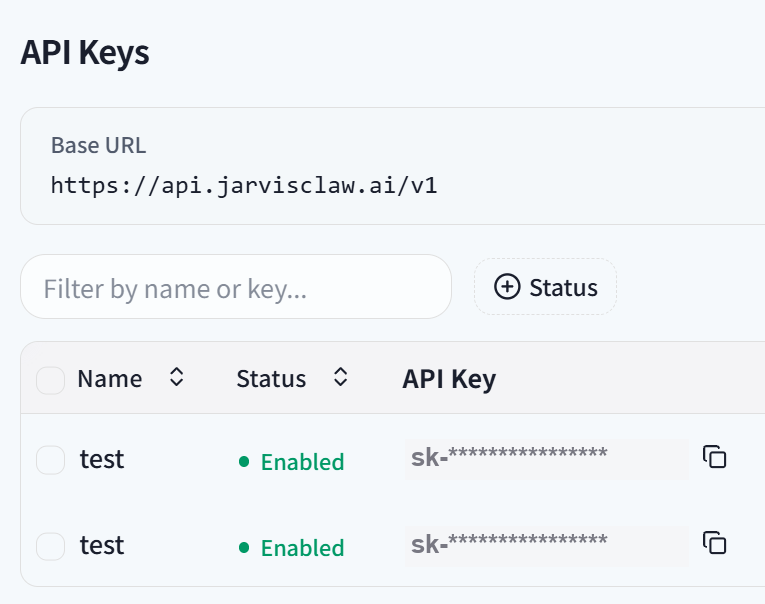
Figure 5. The API Keys list and the create button.
- Click + Create API Key in the top right.
- Give it a name you will recognize later, for example
my-testorproduction-service. - Copy and store the key immediately. It starts with
sk-, and the list only ever shows the first and last few characters, with the middle masked. The full value is never shown again. - One key is enough. Create several if you want per-project accounting.
Three security rules worth keeping:
- The key is your account credential. Anyone holding it can spend your balance.
- Do not put it in front-end code, do not commit it to a Git repository, and do not paste it into group chats or screenshots.
- If it leaks, come back to this page, disable it with the Status toggle or delete it, then create a new one.
6. Step five: your first API call
Model names live on the Models page, which marks each model's provider, supported capabilities, and current availability.
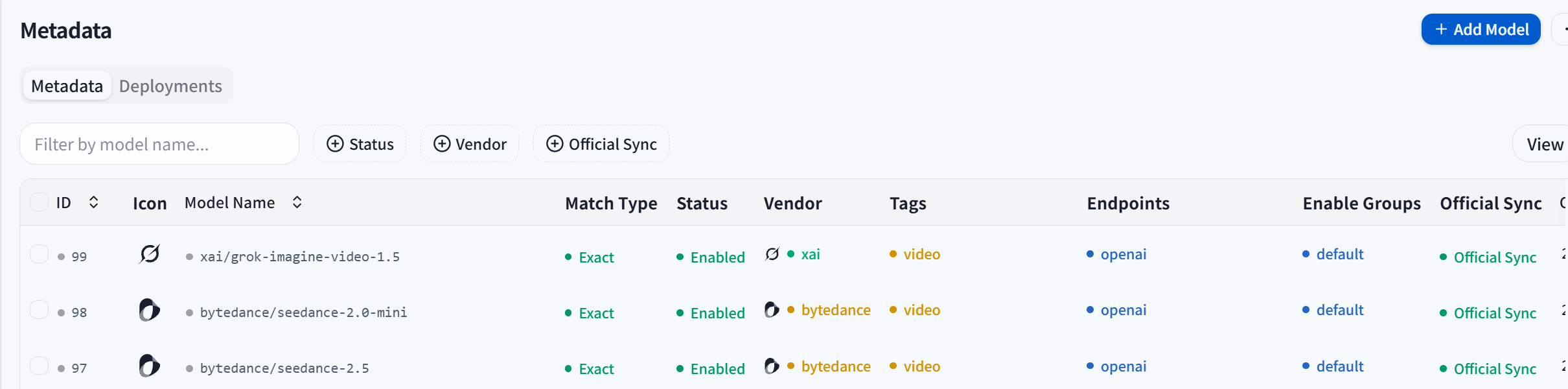
Figure 6. The Models page, showing name, provider, capability tags and status.
Copy the full name from the Model column (it looks like provider/model-name) and put it in the model field below.
6.1 Using the OpenAI protocol (most common)
The endpoint is https://api.jarvisclaw.ai/v1/chat/completions, and the body is the standard shape.
curl https://api.jarvisclaw.ai/v1/chat/completions \
  -H "Authorization: Bearer YOUR_KEY" \
  -H "Content-Type: application/json" \
  -d '{
    "model": "MODEL_NAME",
    "messages": [{"role": "user", "content": "Hello, tell me about yourself"}]
  }'
In Python:
from openai import OpenAI

client = OpenAI(
    api_key="YOUR_KEY",
    base_url="https://api.jarvisclaw.ai/v1",
)

resp = client.chat.completions.create(
    model="MODEL_NAME",
    messages=[{"role": "user", "content": "Hello, tell me about yourself"}],
)
print(resp.choices[0].message.content)
It comes down to one line: point the base URL at https://api.jarvisclaw.ai/v1, swap in the key we gave you, and leave the rest of your code alone.
For streaming, add "stream": true. Behavior matches what you already know.
6.2 Using the Anthropic protocol
We also serve a native Anthropic-protocol endpoint at https://api.jarvisclaw.ai/v1/messages. If your program was written against that protocol, change the URL and the key.
curl https://api.jarvisclaw.ai/v1/messages \
  -H "Authorization: Bearer YOUR_KEY" \
  -H "Content-Type: application/json" \
  -d '{
    "model": "MODEL_NAME",
    "max_tokens": 1024,
    "messages": [{"role": "user", "content": "Hello"}]
  }'
Request and response bodies are that protocol's original format. No field translation needed.
6.3 Endpoints for other capabilities
Chat is not the only thing here. The common capabilities each have an endpoint, and authentication is identical across all of them:
| What you want | Endpoint |
|---|---|
| Chat completions | /v1/chat/completions |
| Anthropic-protocol chat | /v1/messages |
| Text embeddings | /v1/embeddings |
| Image generation | /v1/images/generations |
| Text to speech | /v1/audio/speech |
| Speech to text | /v1/audio/transcriptions |
| Video generation | /v1/videos/generations |
| Reranking | /v1/rerank |
| Web search | /v1/search |
| Realtime session | /v1/realtime |
| List available models | /v1/models |
The Gemini protocol lives under the /v1beta prefix, in that protocol's own path shape.
7. Browsing the API Marketplace, and calling it
Beyond AI models, the platform aggregates over two thousand ready-made API services: web search, on-chain data, image and video generation, code tools, domain lookups, weather and aviation, and more. Same key for all of them, no separate sign-up elsewhere.

Figure 7. The API Marketplace home page.
7.1 Finding the interface you want
Open https://api.jarvisclaw.ai/en/marketplace and browse by category. Each interface shows its status, HTTP method, and parameter documentation, with examples on the detail page.
You can also search over the API, no sign-in required:
# search by keyword
curl "https://api.jarvisclaw.ai/api/marketplace/apis?q=weather&page_size=5"

# browse a category page by page
curl "https://api.jarvisclaw.ai/api/marketplace/apis?category=video&page=1&page_size=20"
Four parameters: q keyword, category category, page page number, page_size items per page. Misspelled parameter names are ignored and you get default results back, so check spelling first when a search seems not to work.
In the returned data.items, three fields per entry matter when you call:
| Field | Use |
|---|---|
resource_id | Numeric id, pass this when calling |
slug | Readable name, also callable directly |
method | The HTTP method this interface expects |
data.total is the number of matches, and data.categories lists every category with its interface count, useful for surveying what exists.
7.2 Calling a marketplace interface
Everything is forwarded through the platform, authenticated with the same key. Two forms cover every service in the marketplace.
Form A: call by id or name (this is how all two-thousand-plus interfaces work)
# by resource_id
curl "https://api.jarvisclaw.ai/v1/marketplace/api/3621" \
  -H "Authorization: Bearer YOUR_KEY"

# by slug, exactly equivalent
curl "https://api.jarvisclaw.ai/v1/marketplace/api/aviation-metar" \
  -H "Authorization: Bearer YOUR_KEY"
For interfaces that take parameters, put them in the JSON body using the field names from the detail page:
curl -X POST "https://api.jarvisclaw.ai/v1/marketplace/api/city-weather" \
  -H "Authorization: Bearer YOUR_KEY" \
  -H "Content-Type: application/json" \
  -d '{"param_name":"param_value"}'
With this form you do not have to think about the HTTP method. The platform knows how each interface expects to be called and forwards accordingly.
Form B: call by service name and path (for the platform's own service groups, where the path reads more naturally)
curl "https://api.jarvisclaw.ai/v1/marketplace/SERVICE/PATH?param=value" \
  -H "Authorization: Bearer YOUR_KEY"
For example, searching prediction market quotes:
curl "https://api.jarvisclaw.ai/v1/marketplace/prediction/markets/search?q=bitcoin" \
  -H "Authorization: Bearer YOUR_KEY"
A service name here maps to a group of interfaces. For which paths exist and which method each one uses, copy what the detail page gives you.
Two easy mistakes
- The identifier must be a bare number or a bare slug. If the listing gives you a fully qualified identifier containing a slash, take only the part after the slash. Pasting the whole thing adds an extra path segment and returns 404.
- With Form B, the service name has to be one that actually exists on the detail page. A typo returns 404 telling you the service was not found.
If you are unsure what parameters an interface accepts, besides the detail page you can use the MCP tool get_api_detail from Chapter 9 to fetch its full description.
For how billing works, see https://api.jarvisclaw.ai/en/pricing.
8. AIP: let agents find capabilities themselves
If you are building AI agents, AIP (Agent Intent Protocol) removes a lot of hard-coding. The core idea: your agent states what it wants to do, and the platform works out which capability to use and how to call it.
8.1 Automatic agent discovery
The platform publishes a self-describing capability document at a fixed location. Any agent can fetch it once and know how to integrate:
curl https://api.jarvisclaw.ai/.well-known/agent-intent-protocol.json8.2 What task types exist
No sign-in needed to check:
curl https://api.jarvisclaw.ai/v1/intent/typesCurrently over twenty categories, including chat, image generation, video generation, speech synthesis, translation, web search, knowledge retrieval, geography, blockchain, data analysis, storage, and prompt optimization.
8.3 Common endpoints
| What you want | Endpoint |
|---|---|
| List task types | GET /v1/intent/types |
| Preview how an intent would route | GET /v1/intent/resolve |
| Discover available capabilities | GET /v1/intent/discover |
| Parse a natural-language sentence into an intent | POST /v1/intent/resolve/natural |
| Estimate cost | Use the MCP tool aip_estimate_cost, see Chapter 9 |
| Execute an intent | POST /v1/intent/execute |
| Execute with a budget cap | POST /v1/intent/execute-budget |
| Subscribe / list / unsubscribe | POST, GET, DELETE /v1/intent/subscribe |
| Read the execution audit log | GET /v1/intent/audit |
For example, asking the platform to turn a sentence into a structured intent:
curl -X POST https://api.jarvisclaw.ai/v1/intent/resolve/natural \
  -H "Authorization: Bearer YOUR_KEY" \
  -H "Content-Type: application/json" \
  -d '{"query": "translate this Chinese passage into Japanese"}'
The response gives candidate intents with confidence scores, and your agent decides what to do next.
8.4 You can set a budget cap at execution time
Normal execution uses POST /v1/intent/execute. If you want a safety net, use POST /v1/intent/execute-budget, which accepts a budget cap for the task and refuses to execute beyond it.
That cap is what keeps an unattended agent from draining your balance in a runaway loop. Combined with the cost estimate above, the full flow is: estimate, set a cap, then execute.
8.5 Agents can use marketplace interfaces directly
The two-thousand-plus marketplace interfaces from Chapter 7 need no extra configuration for agents: search the catalog by keyword for a resource_id, then call /v1/marketplace/api/{resource_id}, still authenticated with the same key. The search step needs no sign-in, so an agent can explore what capabilities exist before deciding which one to call.
9. MCP: wiring the platform into your AI client
MCP (Model Context Protocol) is a standard interface for AI clients and agent frameworks. Once configured, your AI assistant can use platform capabilities directly, with no glue code from you.
9.1 Connection details
| Item | Value |
|---|---|
| Endpoint | https://api.jarvisclaw.ai/mcp |
| Method | POST (JSON-RPC) / GET (SSE long connection) |
| Auth | Header Authorization: Bearer YOUR_KEY |
| Protocol version | 2025-03-26 |
Handshake example:
curl -X POST https://api.jarvisclaw.ai/mcp \
  -H "Authorization: Bearer YOUR_KEY" \
  -H "Content-Type: application/json" \
  -d '{"jsonrpc":"2.0","id":1,"method":"initialize","params":{}}'
Listing every available tool:
curl -X POST https://api.jarvisclaw.ai/mcp \
  -H "Authorization: Bearer YOUR_KEY" \
  -H "Content-Type: application/json" \
  -d '{"jsonrpc":"2.0","id":2,"method":"tools/list","params":{}}'
9.2 Tools the platform provides
| Tool | What it does |
|---|---|
list_models | List every model available on the platform |
chat | Send one conversation turn to any model |
search_apis | Search interfaces in the API Marketplace |
get_api_detail | Read an interface's full description and parameters |
discover_agents | Discover other agents available on the platform |
aip_list_intents | List every routable task type |
aip_resolve | Resolve an intent into a concrete execution plan |
aip_estimate_cost | Estimate what a task will cost before running it |
aip_execute_with_budget | Execute a task with a budget cap |
The last four exist for autonomous agent decision-making: list task types, resolve, estimate cost, then execute with a cap. The whole chain runs without your involvement.
9.3 Publishing your own interface
If you have an API of your own that you want to host on the platform, serving it with the same auth and billing, register it in the console and it becomes reachable at /v1/uapi/your-identifier/interface-path. See the documentation center for configuration details.
10. Pages you will use day to day
The menu down the left side of the console is your everyday entry point, in four groups: PLATFORM for the overview and models, AGENTS for the marketplace, DEVELOP for keys and docs, BILLING for money and usage.
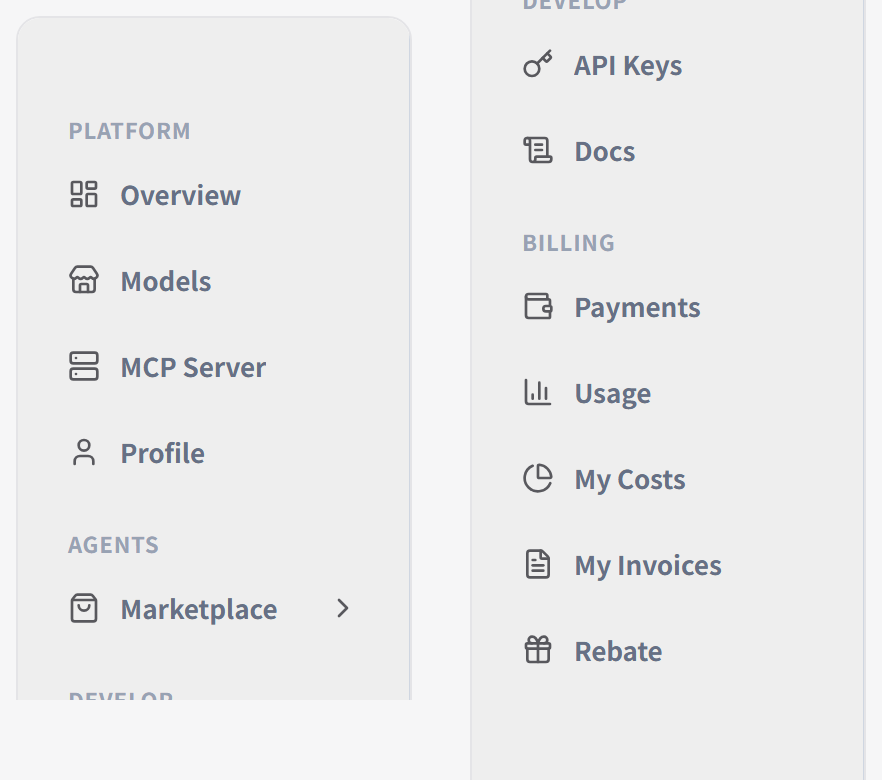
Figure 8. The left menu after signing in with a regular account. It is a single vertical column on screen; split into two here to fit the page.
| What you want to do | Where | Group |
|---|---|---|
| See the account overview | Overview | PLATFORM |
| See the model list and pricing | Models | PLATFORM |
| Connect an MCP client | MCP Server | PLATFORM |
| Change password or profile | Profile | PLATFORM |
| Find a ready-made API | Marketplace | AGENTS |
| Manage keys | API Keys | DEVELOP |
| Read the full technical docs | Docs | DEVELOP |
| Check balance, top up | Payments (the page title reads Wallet, same page) | BILLING |
| Inspect every individual call | Usage | BILLING |
| See how much you have spent | My Costs | BILLING |
| Get monthly statements and invoices | My Invoices | BILLING |
| Check commission, get your referral link | Rebate | BILLING |
Two of these pages hold more than their names suggest, worth spelling out so you can find things:
My Invoices has two halves. The top is Billing Details: legal company name, tax id, billing email, address, and a PO number for your finance system. Fill this in and save it first, because each invoice copies the details as they stand at the moment it is issued. Later edits only affect future invoices; already-issued ones do not change. The bottom half is the invoice list (invoice number, billing period, amount, request count, issue date). Invoices are generated after each calendar month closes, so this is empty on a brand-new account. That is normal.
Rebate carries the page title Commission Center and has two tabs. Platform Commission shows commission from platform programs along with payout records. Referral Commission holds your referral code and referral link. Send the link to someone and have them sign up; the same page lets you review referred users and payouts by month. Commission always lands in your platform wallet balance. Rates and programs for both are set by the platform month by month rather than being fixed, and the platform may adjust or pause them. So Plan Status: Paused on the page only means no program is running for the current period. It does not mean something is wrong with your account.
That covers every entry point a regular account can see. If your sidebar has four extra groups (FINANCE, OPERATIONS, GROWTH, SYSTEM), or the BILLING group shows two extra items, Recharge and Referral Payouts, then your account carries administrator privileges. Those pages are for platform operations: managing channels, viewing platform-wide cost, reviewing users, changing system settings. They have nothing to do with calling the API, topping up, or reading your own bills, you will not need them day to day, and this guide does not cover them. Regular accounts cannot reach them, and not seeing them is the normal case.
11. When something goes wrong, start here
Call returns unauthorized / 401 The key is wrong, or Bearer is missing in front of it. Go back to the API Keys page and confirm the key's status is Enabled.
Says insufficient balance Top up on the Wallet page. Refresh afterwards to confirm the balance updated.
Online payment succeeded but the balance did not change Refresh the page first. If it is still not updated, check the order status under Order History, then contact us.
Sent USDC but nothing arrived Confirm three things first: that you sent USDC, that you picked the right chain (a Base address only accepts Base), and that the amount met the minimum shown in the dialog. If all three are fine, wait for on-chain confirmation; the dialog shows Confirming / Settling status.
Not sure which model name to use The console's model list page has every available model, or call /v1/models for a copy. Copy the name straight into the model field.
Marketplace call returns 404 Usually the wrong HTTP method. Go back to the interface detail page and confirm whether it wants GET or POST, and copy the path exactly.
Want to know where the money wentUsage has a record of every single call; My Costs is the aggregated view.
12. A few suggestions to save you trouble
- Top up a small amount first and run the whole flow end to end. Scale up once it works.
- Give keys meaningful names and create separate ones per project, so problems are easy to trace.
- Keep keys in environment variables, not hard-coded in source.
- Look at the Usage page before going live, so you have a feel for real consumption.
- For unattended agents, use AIP's budget cap to avoid accidental runaway spend.
- On your first on-chain top-up, send a small amount, confirm the address and chain were right, then send more.
Reach out any time you need help. More detailed interface documentation, per-language examples, and advanced usage all live at https://docs.jarvisclaw.ai.